Updated 27 September, 2026 · 10 min read
On this page
1-The Real Cause, Explained Simply
2-The 30-Second Fix
3-Full Cause List
4-When It’s Not Just Explorer
5-The Overlay Icon Problem Nobody Mentions
6-Deeper Fixes If the Basics Don’t Work
7-Multi-Monitor Users: One Extra Thing to Check
8-Wrapping Up
9-FAQ
1-The Real Cause, Explained Simply
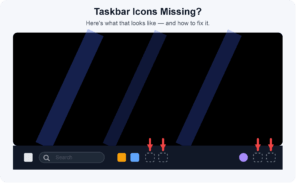
Vanishing or unresponsive taskbar icons is a distinct but relatively common visual glitch that’s virtually always solved by restarting the single background process managing the taskbar, desktop icons, and File Explorer windows; rather than a more involved system reboot. The taskbar, desktop icons and File Explorer windows are rendered through a single background system process called explorer.exe, which can occasionally freeze or misbehave in ways preventing these icons from appearing or responding, despite everything else being fully functional.
2-The 30-Second Fix
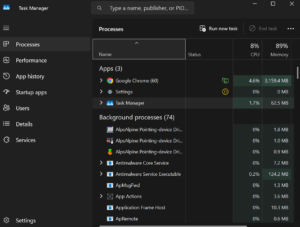
Restarting Windows Explorer specifically, rather than the full system, has solved this for me under thirty seconds every time it’s occurred. Open Task Manager (Ctrl+Shift+Esc), find Windows Explorer in the list of processes, right-click, and choose Restart — this will refresh the taskbar, desktop icons and any open File Explorer windows without disrupting anything else you might have open on your system.
If you’d prefer not to deal with Task Manager, the same can be accomplished from either a Command Prompt or Run dialog by typing out taskkill /f /im explorer.exe followed by start explorer.exe, one after the other. This does exactly the same thing as the Task Manager solution, just from the command line, and is useful in cases where the taskbar is particularly locked up and right-clicking on it doesn’t work.
3-Full Cause List
1-Windows Explorer crashing or misbehaving in the background — by far the most common and most straightforwardly fixable cause
2-A recent update to your display or graphics drivers, that hasn’t properly integrated yet and occasionally interferes with the taskbar’s rendering
3-A temporary wake-from-sleep display glitch, where taskbar display information temporarily gets confused
4-A system update waiting to be applied and restarting the system, which occasionally displays glitches while it’s waiting
5-A corrupted icon cache, where Windows’ stored icon images become garbled or unreadable
6-A cloud-sync or security app’s overlay icons conflicting, covered in more detail below, as this is a distinctly specific and often overlooked cause
4-When It’s Not Just Explorer
Update your graphics drivers if the issue persists after an explorer restart, as outdated or faulty GPU drivers can cause graphical glitches specifically affecting the taskbar, particularly on systems that’ve had a drive update pushed to them recently. Check for any pending Windows updates — occasionally a pending update will cause brief display glitches until it installs and the system is actually restarted, rather than just waiting indefinitely for a restart.
If Explorer restarted fine, but the same icons go missing again shortly after, run Windows’ built-in System File Checker by opening a Command Prompt as Administrator and running sfc /scannow. This will scan for and repair any corrupted system files, and while it’s a less common solution for this particular issue, it does pick up cases where a deeper corruption is causing the taskbar (and potentially other things) to misbehave repeatedly, rather than being a one-off issue.
5-The Overlay Icon Problem Nobody Mentions
Here’s one that’s genuinely underreported elsewhere. The icons for cloud storage apps (OneDrive, Dropbox, Google Drive, etc.) and some security software show up as tiny overlay icons on top the system tray and on files in Explorer — these icons are handled independently by a separate part of Windows, and also have their own icon cache, which can also get corrupted independently of the general fix above.
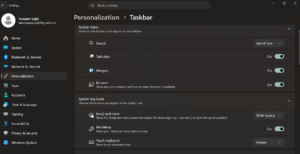
If your missing or unresponsive icons are on the system tray (the notification area on the right side of the taskbar) rather than your pinned app icons, this may be worth looking into, as there’s a dedicated section for turning off icons there: right-click the taskbar, and choose Taskbar settings — look for Other system tray icons, and see if any of your icons there are showing as hidden; simply toggling one of these back on can often fix what might’ve looked like a significantly bigger issue to a casual user.
6-Deeper Fixes If the Basics Don’t Work
1-Restart Windows Explorer through Task Manager, or the command-line method above.
2-Update your graphics drivers, particularly if the issue started after a driver update.
3-Check for and install any pending Windows updates, and fully restart if necessary.
4-Restart your computer fully, if restarting explorer alone doesn’t work — this will solve the vast majority of remaining cases.
5-Rebuild the icon cache manually if icons remain visually broken (showing as blank) after a restart — this involves deleting the hidden IconCache.db file (or iconcache_.db files on newer versions) and allowing Windows to regenerate it.
6-Run System File Checker (sfc /scannow) if the issue is occurring repeatedly, rather than a one-off.
7-Try a clean boot, which runs Windows with only essential background processes running, as a way of testing whether a third-party app or service is the actual root cause of a recurring taskbar issue rather than Windows itself.
7-Multi-Monitor Users: One Extra Thing to Check
If you use multiple monitors, there’s a known specific quirk to be aware of: disconnecting or reconnecting a monitor, or waking up from sleep with a multi-monitor setup, can occasionally leave the taskbar on a secondary display frozen or missing icons, while the primary display’s taskbar works fine. This is a slightly different symptom from a fully broken taskbar, and is fairly specific to multi-monitor setups that single-monitor troubleshooting guides tend not mention at all. The same explorer restart fix above should solve this too, but if it occurs specifically after connecting or disconnecting a display, it’s worth checking Windows’ display settings to confirm both monitors are being correctly detected before assuming it’s an explorer problem.
8-Wrapping Up
Restarting Windows Explorer through Task Manager is genuinely the fastest fix and solves this the majority of the time without needing a full system reboot. It’s a safe, quick action that only refreshes the visual shell rather than restarting anything else you might have running on your system — if the issue keeps recurring rather than being a one-time thing, checking system tray overlay icons, running a file system scan, or testing with a clean boot will often identify whether something specific is the root cause rather than a random glitch.
9-FAQ
1-Will restarting Explorer close my open programs?
No, it only restarts the taskbar and file explorer process — your open applications and unsaved work are untouched.
2-Why does this happen more often after waking from sleep?
Wake/sleep cycles can occasionally cause the Explorer process to hang or get confused about the taskbar’s display state, particularly on systems with certain graphics driver combinations.
3-Is this a sign of a bigger system problem?
Not generally — it’s a common, minor glitch, though if it’s happening very frequently, updating your graphics drivers or running a system file scan would be worth doing to prevent it.
4-Why are only my system tray icons missing, while pinned taskbar icons look fine?
This usually points towards the separate overlay icon cache used by cloud-sync and security apps, rather than the main taskbar issue — check ‘Other system tray icons’ in taskbar settings first.
5-Does this happen differently with multiple monitors?
Yes, a secondary display’s taskbar can occasionally freeze or lose icons independently of the primary display, usually after connecting or disconnecting a display.
6-Should I try a clean boot if this keeps happening?
Yes, if it’s a recurring, rather than a one-time thing — a clean boot helps identify whether a specific third-party app or background service is triggering it.
About This Guide
I had the situation with the system tray version of this particular — pinned taskbar icons were still present, but the cloud synced overlay icons were gone, and the fix involved changing the settings in the “Other system tray icons” panel, not anything related to Explorer.
Related Fixes:
https://appfixguide.net/windows-update-stuck-or-failing-how-to-fix-it/