Updated 28 September,2026 · 11 min read
Table of Contents
1-Why Updates Get Stuck
2-Before You Start: Quick Diagnosis
3-How to Fix It (Step-by-Step)
4-Advanced Fixes (When Basic Steps Fail)
5-Windows 11 24H2/25H2 Specific Issues
6-Common Error Codes Explained
7-Command Cheat Sheet
8-Preventing Future Stuck Updates
9-Final Thoughts
10-Frequently Asked Questions
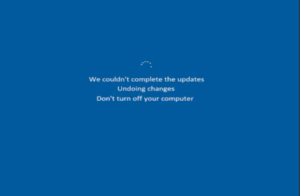
A Windows Update that appears to get stuck or fails intermittently is actually possible to solve with Microsoft’s own diagnostic tools, despite the dramatic appearance of the progress bar frozen at 47% or the hours-long wait at “Working on updates”.
A personal aside: I’ve had to manually clear the update cache to resolve a persistent issue after the built-in troubleshooter failed to resolve it, and that’s a process that doesn’t come up nearly as much as it should in guides like this one – hence the detailed walkthrough below.
1-Why Updates Get Stuck
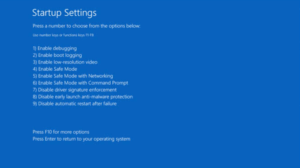
There is almost always a reason why a Windows Update gets stuck:
1-Corrupted update cache – leftover files in the update cache that conflict with the new update
2-Insufficient disk space – major updates can require 20-64GB of free space temporarily, even if the final installation is smaller
3-A background process is interfering with the update – some antivirus programs, backup apps, or disk-cleaning utilities
4-Corrupted system files – Windows components that the update tries to modify are already damaged
5-A previous update requires a restart before new updates can be installed
Conflict with device drivers – particularly common on laptops and older PCs that were upgraded from Windows 10 to 11 in 2025-2026
6-An issue on Microsoft’s end, which unfortunately does happen occasionally
2-Before You Start: Quick Diagnosis
-Instead of jumping ahead to the more involved repairs, try these first:
Open Settings > Windows Update and make note of any error code that appears (it’ll look something like 0x8024…)
Open Settings > System > Storage and ensure that you have at least 20-30GB of free space
Check Settings > Windows Update > Update history for any “Pending restart”
If you’re working on a laptop, ensure it’s plugged in – Windows can sometimes pause 9-updates when the battery is low
3-How to Fix It (Step-by-Step)
1-Try the Windows Update Troubleshooter. You can find it in Settings > System > Troubleshoot > Other troubleshooters > Windows Update > Run. This tool will detect and repair many of the most common issues automatically.
2-Check that you have enough free space. Large updates require several gigabytes of free space just to stage before actually installing.
3-Restart your computer and try again. A simple restart often resolves the issue on its own by clearing the Windows Update process completely, without needing to go further
4-Clear the update cache by stopping the update services, renaming the SoftwareDistribution folder, then restarting the services (see the cheat sheet below for the exact commands)
5-Use the Windows Update Assistant. Microsoft’s dedicated updating application can sometimes install an update that’s otherwise failing, since it uses a slightly different update channel
6-Verify that the Windows Update service is running. Search for “Services” in the start menu, then look for “Windows Update” in the list, right-click, and ensure that the “Startup type” is “Automatic (Delayed Start)” and that the status shows “Running”
4-Advanced Fixes (When Basic Steps Fail)
1-If the basic fixes haven’t resolved the issue, you might want to try these additional measures:
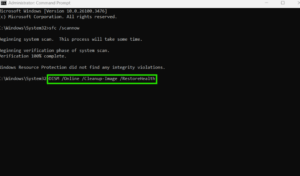
2-Run System File Checker and DISM. These two utilities repair Windows system files that may have become corrupt; run them in the order given (commands below), and always run the SFC scan after the DISM command completes
3-Look for a “pending restart” lock in the registry by searching the registry editor for HKLM\SOFTWARE\Microsoft\Windows\CurrentVersion\WindowsUpdate\Auto Update\RebootRequired. If the key is present, restart your PC before attempting to update again – Windows Update will refuse to run with this registry key set
4-Update your drivers first, then retry the update. Outdated or faulty drivers are one of the most common causes of repeated update failures in 2025-2026, particularly if you’re using third-party antivirus software in addition to Windows Defender. Make sure to update chipset drivers, storage controllers, and graphics drivers from your computer manufacturer’s website rather than through Windows Update, at least temporarily
5-Disable your third-party antivirus temporarily and try again. Some antivirus applications can interfere with the update process at the file replacement stage; never disable Windows Defender for this purpose, but temporarily disabling other applications can help determine if they’re at fault
6-Run a clean boot and retry the update. Open System Configuration (search “msconfig”), go to the Services tab, check “Hide all Microsoft services”, then disable all non-Microsoft services. When you restart your PC, Windows will start in a clean state without any background applications running, which can also help detect the source of the problem
5-Windows 11 24H2/25H2 Specific Issues
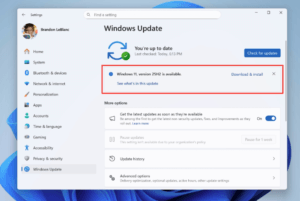
If you’re running a more modern version of Windows 11, there are a few 2026-specific notes that may be relevant:
1-The 24H2 and 25H2 updates are being rolled out more intensively through Microsoft’s Controlled Feature Rollout (CFR) system in 2026, so it’s not uncommon to see two identical computers several weeks apart receive the same update
2-Some CPUs are still showing compatibility issues with the latest cumulative updates, even if the Windows Update page shows no errors. If you’re on a particularly old processor and the update simply isn’t showing up, check Settings > Windows Update > Advanced options for a compatibility warning
3-The new Windows Update interface that began rolling out in 2025-2026 can occasionally get stuck on “Checking for updates…” due to a Delivery Optimization cache issue rather than the Software Distribution folder. If this happens, try clearing the Delivery Optimization cache (Settings > Windows Update > Advanced Options > Delivery Optimization > Advanced Options > Reset) before proceeding to the next steps
6-Common Error Codes Explained
1-Code Likely Cause Fastest Fix
0x80070070 Not enough disk space Free up space, retry
0x8024402F Network/proxy or firewall blocking update servers Check connection, disable
2-VPN temporarily
0x800F0922 System reserved partition too small, or VPN interference Disconnect VPN, check partition space
0x8007000D Corrupted update files Clear update cache (Step 4 above)
0x80073712 Corrupted system files needed by update DISM + SFC
0xC1900101 Driver conflict during feature update Update or temporarily uninstall the conflicted driver
Search the error code on Microsoft’s support site if it doesn’t match anything in this table – different error codes indicate different issues that have different solutions. Don’t attempt the same fix for every error without researching the code.
7-Command Cheat Sheet
1-All commands below should be run in Administrator command prompt or PowerShell:
2-Clear the update cache manually:
3-#Stop update services
4-net stop wuauserv
5-net stop bits
6-net stop cryptsvc
7-#Rename distribution folders
8-ren C:\Windows\SoftwareDistribution SoftwareDistribution.old
9-ren C:\Windows\System32\catroot2 catroot2.old
10-#Restart update services
11-net start wuauserv
12-net start bits
13-net start cryptsvc
14-Repair system files:
DISM /Online /Cleanup-Image /RestoreHealth
15-sfc /scannow
16-Completely reset Windows Update components (only if the above commands don’t work):
net stop wuauserv
net stop bits
net stop dosvc
net start wuauserv
net start bits
net start dosvc
8-Preventing Future Stuck Update
1-Always keep 25-30GB of space free on your system drive, rather than only when an update is pending
2-Update GPU and chipset drivers directly from the manufacturer every 2-3 months
Avoid canceling or restarting during an update unless it’s been hours with no visible progress
3-Restart your PC at least weekly to allow minor update-related issues to resolve themselves
9-Final Thoughts
The troubleshooter tool resolves the majority of stuck update issues, so it’s worth running it simply because it’s the easiest option. If the update has been stuck for several hours with no progress, a restart will be safe at that point and might resume the update from where it left off. If that doesn’t work, follow the instructions in order – the cache clearing and DISM/SFC commands catch almost everything else that could go wrong.
10-Frequently Asked Questions
1-Is it safe to force-restart during a stuck update?
It’s best to wait if possible, since interrupting certain stages of the update can lead to further problems. After several hours of no visible progress, though, it’s generally safe to restart.
2-Why does my update fail repeatedly with the exact same error code?
Search that particular error code on Microsoft’s support site, since different error codes represent different issues that require different solutions
Does low disk space really block updates that often?
Yes – Windows needs a significant amount of free space to begin the installation process.
Will clearing the SoftwareDistribution folder delete my personal files?
No, that only contains temporary files that will be re-downloaded if necessary – your personal files are unaffected.
Should I report a stuck update to Microsoft?
If it’s happening repeatedly on an up-to-date, well-maintained machine, reporting it via the Feedback Hub app can help Microsoft identify the issue more quickly and may result in a fix being released sooner.
More Related fix:
https://appfixguide.net/windows-taskbar-icons-missing-or-not-responding-the-fix/