Updated 27 September,2026 · 14 min read
Table of Contents
1-The Real Reasons a Mic Goes Silent
2-The Two-Second Check Everyone Skips
3-Fixing It at the System Level
4-Fixing It at the App Level
5-Driver and Hardware-Level Fixes
6-Bluetooth and Wireless Mic Issues
7-2026-Specific Microphone Issues
8-Laptop-Specific Microphone Problems
9-When the Mic Works But Sounds Bad
10-Video Call Apps: Their Own Special Category of Problems
11-Preventing This From Happening Again
12-About This Guide
13-Frequently Asked Questions
1-The Real Reasons a Mic Goes Silent
A microphone that refuses to accept input is typically a configuration issue rather than a hardware problem, and it can actually be incredibly worthwhile to systematically test and rule out the most common culprits rather than leaping straight to reinstalling drivers or replacing the mic. The actual causes, in roughly the order that they should be investigated:
The wrong input device is selected in system settings, so your computer is “listening” to a different microphone than the one you’re actually talking intoMicrophone permissions are disabled at the system, app, or both levels
A physical mute switch or inline mute button is engaged on a headset cable.An out-of-date or corrupt audio driver is improperly inhibiting microphone input, even if the device appears connected
The microphone’s input volume or gain is turned down so far that it’s essentially mute
A Bluetooth microphone is using the wrong audio profile, prioritizing speaker quality over microphone input.
2-The Two-Second Check Everyone Skips
Checking for a physical mute switch is the one troubleshooting step I tend to skip the least now, years after I first spent a good ten minutes navigating menus before discovering there was an inline mute button on the headset cable itself. Before diving into any menus, run through these checks in order:
1-Look for an inline mute switch or volume control on the headset or headphone cable itself – many have one integrated with the volume control, making it easy to mute the microphone without realizing it.
2-Check for a dedicated mute switch on the microphone, USB microphones and some webcam microphones include one.
3-Ensure your microphone hasn’t become unplugged or loose in the socket, especially if you’ve moved your computer or touched the headset jack recently.
4-Verify that a laptop’s function key mute toggle (often shared with a camera privacy key on newer laptops) hasn’t been triggered.
5-It’s a small investment of time that solves the issue outright in an unexpectedly high number of cases.
3-Fixing It at the System Level
After the physical mute switch, the next potential cause is always the system audio settings. This is the place to confirm that your computer thinks the microphone is connected and operational:
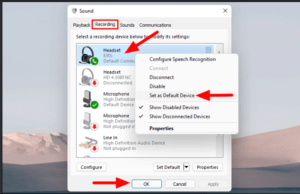
Find and select the correct input device in your system settings – on Windows, you’ll find this under Settings > System > Sound > Input; on Mac, System Settings > Sound > Input. It’s very easy for a computer to revert to a built-in microphone if an external microphone is disconnected and reconnected without explicitly changing the input device.
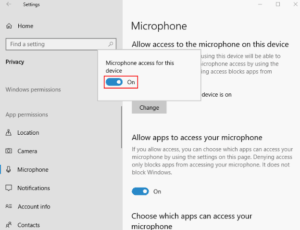
Ensure microphone permissions are granted at the system level as well – Windows: Settings > Privacy & Security > Microphone; Mac: System Settings > Privacy & Security > Microphone. Having this toggle off will prevent any application from accessing the microphone, regardless of individual app permissions.
Listen to the sound input level indicator while speaking into the microphone – in most systems, speaking into the mic will cause a visual level indicator to appear in the sound settings, and if nothing is registering at all, the issue is likely hardware or permission-related, rather than an application-specific issue.
Look for a system-level mic boost or enhancement setting that might have been altered or disabled, Windows audio drivers in particular have a tendency to add “enhancements” (noise suppression, automatic gain) that sometimes end up muting inputs they shouldn’t.
4-Fixing It at the App Level
If your microphone works in some applications but not others, the issue is no longer a system-level one, but rather something specific to the program in question:
1-Check if that specific application has microphone permissions enabled, and ensure it’s not entirely denied at the OS level first, then check if the option within the application itself might have the microphone disabled.
2-Verify that the application has the correct input device selected, most notably video conferencing and recording applications will have their own dropdown menu for input devices that might not be set to your physical microphone.
3-If the application used to work and suddenly stopped, try restarting the application rather than your entire computer, as it might be holding onto an open device pointer that stops working after a reboot.
4-For applications that only appear in browsers, double-check that your browser isn’t blocking the microphone for that specific domain.
5-Driver and Hardware-Level Fixes
If the microphone is connected and the system is registering input, but nothing is actually being picked up, it’s time to dig into the driver and hardware levels:
Update your audio drivers directly from the manufacturer, rather than installing general-purpose drivers from Windows or another source, as manufacturers occasionally push out specific fixes for erratic microphone behavior in generic drivers
1-Try a different USB port or cable for external microphones, as a faulty connection can mimic many software issues, and is generally much easier to rule out than diving into driver configuration.
2-View the Device Manager (Windows) or similar utility on your computer and look for any sort of warning or error indicator next to your audio device, as it could be exhibiting odd behavior without outright crashing the system.
3-If the microphone worked previously and then stopped entirely, consider rolling back a recent driver update, as it might have included a specific fix for the issue you’re experiencing.
6-Bluetooth and Wireless Mic Issues
Bluetooth headsets introduce a class of potential issues that don’t impact standard wired microphones:
Due to the way Bluetooth audio works, headsets will often default to an audio profile that includes excellent sound quality, but doesn’t include microphone input at all, and switching to the hands-free or headset profile in your sound settings (as opposed to the default stereo profile) will often fix the issue.
Some Bluetooth microphones will work in some applications, but not others, specifically if different applications are using different Bluetooth audio profiles simultaneously, such as a phone call application and a browser-based video call.
Interference can affect the quality of a wireless microphone’s input more than its output, especially on some Bluetooth models where the upstream channel (your voice going into the microphone) uses a lower bandwidth than the downstream channel (the music or conversation coming out of it).
A low-power condition on a Bluetooth headset can cause it to disable the microphone while keeping the speaker functionality online as a power-saving measure, with no explicit indicator that it’s happening.
7-2026-Specific Microphone Issues
There are also a few issues that are specific to the year 2026, and might not appear in much older guides:
AI-based noise suppression and voice isolation features built into most operating systems and video call applications as of 2026 occasionally suppress quieter speakers or voices, effectively muting them as the system thinks they’re background noise rather than intended input.
The new Bluetooth LE Audio standard’s low-latency microphone modes, introduced in 2025 and 2026, don’t always work across applications, causing a Bluetooth microphone to work fine in some programs and register no input at all in others.
Operating system-level privacy indicators (the small dot or indicator showing when a microphone is in use) introduced in recent years have occasionally resulted in a desynchronization between the actual permission state and the indicator itself, falsely claiming a microphone is available when it isn’t; toggling the permission off and back on again will usually fix this.
USB-C to 3.5mm headphone jack adapters have become increasingly common as laptops have begun dropping the standard headphone jack entirely, and a generic or low-quality adapter can fail to pass the microphone signal entirely, while still passing the audio signal.
8-Laptop-Specific Microphone Problems
Laptop microphones, especially those built into the laptop rather than being an external accessory, can experience issues specific to that form factor:
A laptop’s privacy shutter or physical mute switch for the integrated camera and microphone, increasingly common on business and premium laptops in 2024-2025, can disable the microphone as a side effect of disabling the camera.
Accumulated dust or debris on the microphone itself, especially on laptops frequently used in dirty or outdoor conditions or carried without a laptop sleeve, can partially or completely block the microphone’s sound pickup.
A docking station or USB hub claiming to have audio input capabilities incorrectly, resulting in the laptop attempting to use the dock’s audio input rather than the built-in microphone, even when no microphone is connected to the dock.
Sleep/wake cycling can leave the built-in laptop microphone in a disabled state, rather than being completely off, so it appears as though the microphone has stopped working when it was in use the day before.
9-When the Mic Works But Sounds Bad
This isn’t necessarily the same issue as the microphone not working at all, and is worth covering separately:
Verify that the input volume or gain isn’t turned down in your sound settings, as a low volume can make it sound as though the microphone isn’t working at all when it’s just set to minimum.
Listening distance and position can affect how sensitive a laptop-built microphone or desktop microphone without a boom arm is, more than many people would expect, compared to how it was when first setting it up.
Excessive noise suppression can cause a working microphone to sound choppy or robotic, as it suppresses some sounds entirely, including quieter sounds in the middle of a word
An incorrect sample rate between the microphone and the application can cause audio distortion or crackling, even if the microphone appears to be working correctly in the sound settings.
10-Video Call Apps: Their Own Special Category of Problems
Video calling applications tend to have unique issues that aren’t present in other kinds of software:
1-Most video calling applications retain the selected microphone for the duration of the call, even if it’s changed elsewhere, so a different microphone selected in the system preferences will often need to be selected again directly in the video call application
Waiting rooms and pre-call device testing in some video calling applications can cause the in-call microphone to malfunction, as the test is performed using a different code path than the actual call itself, even if the test passes.
2-Background blurring, virtual backgrounds, and other visual effects in video calling applications can consume enough resources to cause audio dropouts that resemble a malfunctioning microphone, particularly on lower-end laptops.
11-Preventing This From Happening Again
1-Keep audio drivers updated directly from the manufacturer rather than relying on generic drivers.
2-Get into the habit of checking for a physical mute switch or privacy shutter before beginning troubleshooting.
3-Review app- and browser-level permissions occasionally, rather than waiting for an application to completely fail.
4-If using a Bluetooth headset for calls, familiarize yourself with the location of the profile switch in your sound settings.
5-Keep an extra cable and adapter handy for external microphones, as cable failures are common but easily resolved.
12-About This Guide
I’ve spent far too long in the past wrangling with Windows audio settings over a misbehaving microphone, so I try to keep this resource updated as new causes are discovered. The Bluetooth profile issue in particular took some time to understand, as the headset appeared to work for audio playback but not microphone input, when in fact it was using a different Bluetooth profile entirely that didn’t include microphone support; it took far too long to troubleshoot, as it appeared to be a driver issue when it was actually a profile issue. I update this guide whenever I discover a new cause, as solutions to AI over-suppression of speech and LE Audio codec issues specifically didn’t exist less than two years ago, and most online resources haven’t caught up to those changes yet.
13-Frequently Asked Questions
Why does my mic work in one app but not another?
This is typically an application-level permission issue, rather than a system-wide one; check the specific application’s microphone settings.
Can Bluetooth headsets cause mic issues specifically?
Some can, due to the way Bluetooth audio profiles work; switching to the hands-free profile in your sound settings will usually fix this.
Why is my mic volume too quiet even though it’s clearly detected?
Check your input volume or gain in your sound settings, as it might simply be turned down and needs to be manually increased.
Can AI noise suppression actually mute parts of what I’m saying?
In some cases, yes; overly-zealous suppression can cause it to mistake speech sounds for noise and suppress them entirely, which should be tested and disabled if it appears to be happening.
Why did my mic stop working right after a video call started, even though the test worked fine beforehand?
Some applications use a different code path for the pre-call microphone test than the actual in-call microphone, so a successful test doesn’t always indicate success in the actual call; this should be resolved by manually selecting the microphone in the application’s in-call settings.
Is it worth checking for a hardware privacy shutter if the built-in laptop mic suddenly stops working?
It can be, particularly on newer business or premium laptops, as a hardware shutter or switch for the camera and microphone can disable the microphone as a side effect of disabling the camera.
More Related Fix:
https://appfixguide.net/webcam-shows-a-mirrored-or-flipped-image-how-to-fix-it/