Updated 26 September,2026 · 10 min read
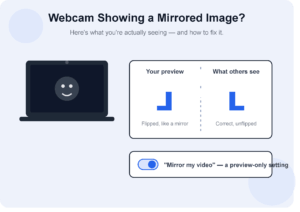
Table of Contents
1-The One Question That Solves This Immediately
2-Why Webcam Mirroring Exists in the First Place
3-A 10-Second Test You Can Run Yourself
4-When It’s Genuinely Flipped for Everyone
5-Full Fix List
6-App-by-App Setting Locations
7-The Virtual Background Trap
8-Streaming and Recording Software: A Different Problem Entirely
9-Final Thoughts
10-Frequently Asked Question
Understanding that this is a local preview setting ad not what others actually see cleared up a ton of worry for me first time I ran into it – ask one other person on the call the simple question ‘does my video look normal to you, or backwards’ and that solves this problem for almost everyone who comes here first, because the rest will answer ‘you look completely normal to me’ (the mirroring only exists for your local preview)
Why Mirroring Exists in the First Place
Most video applications choose to mirror your own video so it feels natural to you like a real mirror, but the actual feed sent to others isn’t flipped in any way. This is intentional, as humans are used to seeing themselves mirrored our whole lives. Having an unmirrored self-preview genuinely feels disorienting to most. Movement of your hands feels ‘backwards’ and something as simple as adjusting your hair on camera becomes confusing without practice. Designers of these tools choose to mirror your preview to avoid that discomfort, while sending the correctly oriented, unmirrored version to everyone else.
A 10-Second Test You Can Run Yourself
Aside from asking someone else, there’s another fast way to test this without needing another person online at all: Hold up something with text on it (book covers, pieces of paper with text on them, a shirt with a logo) directly in front of your camera. Your local preview will show this text backwards, exactly like you’d expect to see it in a real mirror. This is normal and correct. If you have any way available to capture a test clip or take a screenshot of what’s actually being sent (many apps allow you to view or save a snapshot of the outgoing feed), check that instead – what you should see in it is text that reads correctly, while the text in your preview is backwards.
When It’s Genuinely Flipped for Everyone
Genuinely flipped for everyone else is much less common and usually a driver or app-level issue, and this is the version you might actually want to fix. Someone else on the call has confirmed your video looks backwards to them — text on clothing reading wrong, your dominant hand showing up on the wrong side when pointing at something, etc. The actual outgoing feed is being flipped somehow, not just your preview.
Full Fix List
1-Check if it’s just your local preview, by asking another participant directly whether your video looks normal or backwards on their end.
2-Look for a ‘mirror my video’ setting. Most video apps, including Zoom and Teams, have a toggle for this in video settings, separate from any other camera settings.
3-Update your webcam drivers. Outdated drivers can occasionally cause genuine flipping that affects what others see, not just your preview, especially with an update to your operating system.
4-Restart the app completely, not just reconnecting the camera within it. This will fix one-off rendering glitches that can cause incorrect mirroring on either end.
5-Check third-party webcam software settings. If you’re using dedicated camera software (often with high-end webcams or streaming setups) it often has a separate mirror or rotation setting that operates independently of whatever app you’re using it in.
6-Check for a physical camera orientation issue, on external webcams that clip onto a monitor or sit on a small stand. A camera that’s slightly rotated or mounted upside-down can cause a genuinely flipped/rotated feed that’s impossible to fix with software, since the sensor is incorrect.
7-Try a completely different app as a diagnostic step. If the same webcam looks correct in one app but flipped in another, the problem is app-specific and likely a setting.
App-by-App Setting Locations
Since the exact words and location of this setting varies by app and gets updated, here’s roughly where to look as of 2026:
1-Zoom: Settings → Video → uncheck ‘Mirror my video’ (this specifically controls your own local preview, and does not affect what others see which is a trip-up)
2-Microsoft Teams: Settings → Devices → Camera (a mirroring toggle sits alongside camera selection, on some versions it’s under a separate ‘Video settings’ panel accessed from the meeting controls directly)
3-Google Meet: settings gear icon → Video, with mirroring typically bundled under general video display preferences (rather than a standalone toggle), making it missable
OBS Studio (commonly used for streaming or recording, not just calls): mirroring is controlled by source, by right-clicking the video source in your scene and selecting ‘Flip Horizontal’ (this is a genuinely separate setting from anything in Zoom, Teams, or Meet, as OBS treats the camera as a raw video source rather than applying preview logic)
The Virtual Background Trap
Here’s a genuinely underreported interaction: enabling a virtual background or background blur in some apps can subtly change how mirroring works, because the app has to process and re-render the video feed frame by frame to separate you from the background, and that re-rendering step occasionally reintroduces or removes a flip that wasn’t there before the effect was applied. If your mirroring issue started at the same time you turned on a virtual background or blur effect, try disabling it temporarily as a test – if the flipping resolves, the background effect is the actual cause, and updating the app or temporarily avoiding that specific effect is the more accurate fix, rather than chasing driver updates that won’t address it.
Streaming and Recording Software: A Different Problem Entirely
This is worth saying on its own, because it’s a distinct category from video calls – if you’re using OBS, or similar broadcasting software to record or stream, mirroring works completely differently than it does in Zoom or Teams. There’s no automatic ‘self-preview mirror’ concept in these tools – what you see in your scene editor is exactly what gets recorded or streamed, with no hidden flip applied for your comfort. If your recorded footage looks mirrored, the fix genuinely is in the source properties of that specific software, not in Windows camera settings, not in a driver, and not in any setting from a video calling app that also happens to be installed. Checking the right piece of software for the right context avoids a lot of wasted troubleshooting time here.
Final Thoughts
In the overwhelming majority of cases, what you’re seeing is just your own local preview being mirrored intentionally, and everyone else see you correctly. It’s genuinely worth confirming with someone else on the call, or checking a saved snapshot of the outgoing feed, before spending time adjusting settings that don’t actually need fixing. If it turns out to be genuine, work through app settings first, then a virtual background conflict if you have one, and only move to driver updates or physical camera positioning if those don’t resolve it.
Frequently Asked Questions
1-Is text or writing on my shirt supposed to look backwards to me?
Yes, this is expected – your local mirrored preview flips everything, including text, but participants on the other end see it correctly oriented.
2-Why would this actually be flipped for other people too?
This is less common and usually points to a driver issue, an app-level setting affecting the actual outgoing feed, or in some cases a virtual background effect interacting badly with the video pipeline.
3-Does mirroring affect video recordings too?
Recordings typically save the actual outgoing feed, not your mirrored local preview, so recorded video should appear correctly oriented – the exception is dedicated recording software (like OBS), where what you see in the scene editor is exactly what gets saved, with no automatic flip applied.
4-Can a virtual background really cause mirroring issues?
Yes, in some cases. Background blur or replacement requires the app to reprocess the video frame by frame, and that reprocessing step can occasionally introduce or remove a flip that wasn’t present with the effect off.
5-Why does my webcam look fine in one app but flipped in another?
This points to an app-specific setting rather than a driver or hardware problem, as the same physical camera feed is being handled differently by each app’s own software.
6-Is there a way to check the outgoing feed without asking someone else?
Yes – hold text up to the camera and check any snapshot/screenshot/recorded clip the app allows you to review, since that reflects the actual outgoing feed rather than your local preview.
About This Guide
I tested this across Zoom, Teams, and OBS specifically, including deliberately enabling a virtual background to see whether it affected mirroring – it did, in one app, which is reflected in the text above. A held-up book cover was the quickest way to confirm what was actually being sent versus what I was seeing locally.
More Related Fix:
https://appfixguide.net/microphone-not-working-complete-troubleshooting-guide/