Updated 28 September ,2026 · 11 min read
What’s covered
1-You’re Not the Only One, Every Single Day
2-The Habit That Actually Changed How I Handle This
3-The Standard Reset Process
4-Watch Out for This: Fake Reset Emails
5-A Safer Alternative Is Quietly Replacing Passwords
6-Building a New Password That Actually Holds Up
7-Why “Change Your Password Every 90 Days” Is Outdated Advice
8-A Risk Most People Don’t Know About: SIM Swapping
9-Final Thoughts
10-FAQ
1-You’re Not the Only One, Every Single Day
Most services involved in the password-reuse problem have actually expected and prepared for this scenario to happen, designing their password reset flows to be quick and non-intimidating. After all, it’s entirely expected and normal for a person to occasionally forget a password — especially when those passwords are complex and unique per-account, as they absolutely should be. There’s no reason to be ashamed if you click “Forgot password”, as it’s one of the most-used links on the internet.
2-The Habit That Actually Changed How I Handle This
The personal habit I formed in response to this problem is using a single, unique password for every service and account. I don’t really think this is a necessary habit, because the entire problem is easily avoided anyway — but I know I wasn’t doing it before this one password reset request came in several years ago, when I realized I’d been using the same password across dozens of services for well over a year. (Not because I didn’t know I shouldn’t, either — it was just a matter of convenience and laziness.) It wasn’t until right in the middle of a password reset that I realized I couldn’t remember which of my five or six “go-to” passwords I’d used for this particular service, since they were all so similar; this is what ultimately prompted me to start using a password manager rather than taking any formal advice or course.
3-The Standard Reset Process
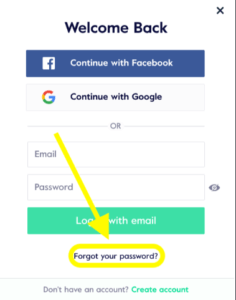
1-Go to whatever service’s login page you were trying to access and click or tap “Forgot password”, which is usually located below the password field itself
2-Enter the email address or username you used to create the account
3-Look in your inbox (and its spam/junk folder, if applicable) for a password reset email from the service, which you should receive shortly
4-Click the link in the email to reset your password, entering a new password of your choice before the link expires (usually between 15 and 60 minutes)
5-Log in with your new password and update your password manager with the new password, if you use one
6-There’s actually very little variation between services’ password reset processes at this point, although some require entering a username instead of an email address and some send a code to your phone instead of a link to an email.
4-Watch Out for This: Fake Reset Emails
One thing I consider very important that most guides on password security completely ignore is the threat of fake, phishing reset emails. Because of how common these reset requests are, bad actors have taken to sending out phishing emails attempting to trick users into believing they’ve initiated a reset request themselves, in an effort to steal their passwords. These emails will appear to come from your bank, your email service, or a website you use regularly, and attempt to lure you to a fake login page that will capture your password as soon as you enter it.
There are several ways to identify a fake password reset email, however, that anyone can use:
You didn’t request a password reset, and if you were suspicious of the email in the first place, navigate directly to the service’s website and check your account security rather than doing anything else. If you click a link in a phishing email, you run a very real risk of providing your actual password to an attacker.
If the link in the email appears to go to a different website than the one it claims to be from, don’t click it. On a desktop computer, you can hover your mouse over the link to see where it actually goes before deciding whether to click it or not, but on a mobile device this may not be possible.
Finally, if the email uses scare tactics or mentions that your account will be suspended or closed if you don’t reset your password, it’s most likely a phishing email. Legitimate password reset emails will always be neutral and non-intimidating.
If you ever encounter a suspicious password reset email and aren’t sure what to do, the best course of action is to ignore the email entirely and navigate directly to the website in question rather than following any instructions in the email.
5-A Safer Alternative Is Quietly Replacing Passwords
This is worth mentioning here, because this particular guide is all about resetting passwords, and this process is actively replacing them with something else entirely. However, this is a very relevant consideration for the purpose of this guide, as several major services (Google, Apple, and a growing number of banks) have already rolled out passkeys, a form of authentication that functions similarly to fingerprint or facial recognition, but at a much larger scale. In short, a passkey is a cryptographic key that either you or your device can “unlock” in order to prove that you are who you say you are — rather than having to remember a password, you can simply scan your fingerprint or use a facial recognition scan to log in to a service and prove that you’re authorized to access it. They’re virtually undetectable, in that you can’t really “phish” someone into giving you their passkey — you either have it or you don’t — and they’re also considerably more convenient than a password, especially one you have to enter on a small smartphone screen.
If the service you use has the option to set up a passkey, which can usually be found in your account security settings, it’s usually worth setting up just to save yourself the trouble in the future — it completely replaces whatever password you had set up for the account, and it’s much more difficult to “forget” a passkey than it is a password.
6-Building a New Password That Actually Holds Up
For services that still ask for a password rather than a passkey, here are a few general rules for building one that actually has a chance of standing up to an attacker:
Make sure your password is at least 12 characters long, and includes a mix of letters, numbers, and special characters, if the service allows them.
Don’t reuse a password from another service, even if it seems like a low-risk account — accounts that seem low-risk are often targeted by attackers precisely because they are perceived as such, and compromising one of them often leads to attackers attempting to compromise other accounts using the same or similar password.
Use a password manager to store and generate your passwords, if you have one — it’ll help you avoid reusing passwords by making it inconvenient to do so.
Use two-factor authentication for any service that offers it, as it adds an additional layer of security beyond your password alone.
Check if your password manager offers breach scanning, a feature that allows it to scan your passwords against databases of known data breaches and inform you if any of your passwords may have been compromised.
7-Why “Change Your Password Every 90 Days” Is Outdated Advice
There has long been a convention for passwords to be changed every 60 or 90 days, a recommendation that came from — ironically — poor password security practices. This rule has since been revoked by most formal and official sets of password security guidelines, primarilydue to the fact that it rarely accomplished its stated goal and instead drove users to create easily guessable variations on a base password rather than completely unique, strong passwords for every service.
8-A Risk Most People Don’t Know About: SIM Swapping
If the service you’re trying to reset the password for uses your phone number for password recovery or two-factor authentication through SMS, it’s worth considering a particular method of attack called SIM swapping, where an attacker convinces your cell phone carrier to port your phone number to a SIM card they physically possess, thereby being able to receive any SMS messages sent to that number, including password reset links and two-factor authentication codes. This is significantly more of a concern than it used to be, as SMS-based two-factor authentication is generally considered a poor option compared to an authenticator app.
However, it’s worth noting that authenticator apps and security keys are generally considered more resistant to SIM swapping precisely because they don’t use your phone number at all — if you have an authenticator app set up for any of your high-security accounts (email, banking, and anything else that uses two-factor or single-factor authentication via SMS), consider switching it to use an authenticator app instead of your phone number as your recovery option, as that will completely eliminate any concern about SIM swapping for that account.
9-Final Thoughts
A password reset generally only takes less than two minutes for virtually any major service, so there’s really no reason to put it off if you’ve forgotten a password. The most useful thing you can do during this process, however, is not to update your password to a slightly-modified version of your old password — rather, consider using a password manager to store and update your passwords, which will help you avoid this very problem in the future. If the service you’re using offers passkeys as an alternative to passwords, consider setting one up as well, which will help you avoid this particular concern in the future. For a more detailed answer, consult the FAQs below.
10-FAQ
1-What if the reset email never arrives?
Check your spam or junk folder to make sure the email hasn’t been caught there, check that you’re using the correct email address or phone number that the account is registered to, and if it still doesn’t appear, contact the service directly and let them know you’re having trouble receiving the reset email.
2-Is it safe to reset a password on public WiFi?
It’s generally considered unwise to perform any kind of secure transaction or communication on public WiFi, so it’s probably not a good idea to reset a password over a shared or unsecured network.
3-How often should I actually change my passwords?
Rather than changing passwords at regular intervals, focus on making sure they’re all unique and strong when you set them or update them.
4-How can I tell a real password reset email from a phishing attempt?
See the section on phishing emails above — if you didn’t request a password reset, don’t click any links in the email, verify that any links in the email actually go to the service’s website before clicking them, and be wary of any email that suggests you’ll be penalized in any way if you don’t reset your password.
5-Are passkeys actually safe, or just more convenient?
Passkeys are generally considered both more convenient and more secure than passwords, and are particularly difficult to “phish”, since there’s no password to guess or steal — you either have the passkey or you don’t.
6-Should I worry about SIM swapping if I don’t consider myself a high-value target?
It’s definitely a concern, but a limited one — using an authenticator app for your most important accounts is considered a reasonable precaution, rather than something to be overly-concerned about.
About This Guide
The password-reuse habit I describe above was a personal one, formed after a particular password reset request several years ago, when it became apparent that I’d been using the same password across dozens of services for well over a year. I wasn’t aware of this at the time, but due to the similarity between several of my “primary” passwords, I couldn’t remember which one I’d set as the password for the service I was using at the time, and decided to use a password manager to help me avoid this issue in the future rather than take any formal recommendations or courses on the subject.
Related Fix
https://appfixguide.net/account-locked-after-too-many-failed-login-attempts-what-to-do/