Updated 2026 · 8 min read
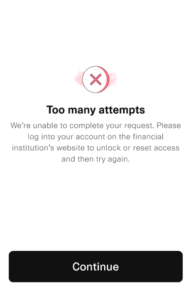
Table of Contents
1-Why This Happens
2-A Real Example: What a Lock Actually Look Like
3-How to Unlock account
4-How to Prevent Future Lockouts
5-Final Thoughts
6-Frequently Asked Questions
Overview
Getting locked out after a handful of failed login attempts is a safety measure, not a bug. Still the lockout feels confusing when the lockout happens to you especially when you are sure about your password.
One moment you are trying to check your email or log into a work dashboard and the next you are looking at a message that says, “try again in 30 minutes.” The lockout makes you feel as if the system is punishing you for something you did not do wrong and often the lockout is indeed justified.
Personal Experience
I have faced this lockout times often at the worst possible moment—just before a meeting or when I need a file in the next five minutes. What I have learned through trial and error is that the instinct to keep pressing the login button is always wrong. Waiting out the lockout timer of trying again many times is usually faster in the long run. Extra attempts during a period can sometimes make the lockout last longer which is the opposite of what you want to do.
Why This Happens
Account lockouts are a safety measure to stop brute‑force password guessing. In brute‑force guessing, an attacker or a script tries password combinations quickly until one works. Locking an account after a few failed attempts makes that kind of attack difficult.
Most lockouts are triggered by:
wrong password attempts in a row usually 3 to 5 depending on the platform.
An outdated password saved in a browser, password manager or mobile app that repeats it automatically when the app does not sync with your credential.
Sometimes an old device or app such as a mail client on a forgotten phone retries a password silently in the background without showing a login screen.
The last cause surprises people because from their side they never even try to log in.
A Example: What a Lockout Actually Looks Like
To make this clearer here is a common pattern I have seen and experienced: a person changes their email password on a laptop continues the day and a few hours later faces a lockout on a phone. The person did not type anything the phone’s mail app still used the old password and automatically retried it every few minutes, which is the kind of repeated failure that triggers a lockout.
The fix in that case does not involve typing carefully. It is about locating every device and app linked to the account and updating the password everywhere not on the device you are using. Many short guides skip this detail. It is often the actual cause when a person says, “I’m sure I typed it right.”
How to Unlock It
1-Wait out the lockout period. Most services automatically remove a lockout after a set time, usually 15 to 60 minutes. This is the fix and needs no action from you.
2-Use the password reset option of retrying. Resetting your password directly is usually faster than waiting. It also solves the problem completely if you really forgot your password instead of mistyping it.
3-Check for a saved password. If a browser, app or another synced device repeats a password automatically that can trigger the lockout without you noticing.
3-Clear saved credentials in the browser. This stops a password from being auto‑submitted the next time you try to log in manually giving the fresh attempt a clean start.
4-Check logged‑in devices and apps. Phones, tablets, email clients and even smart‑home apps tied to the account can silently retry an old password. Update the credential everywhere it is saved, not on your main device.
5-Contact support if the lockout does not lift. Some services need manual unlocking after repeated triggers for security‑sensitive accounts such as banking or work logins.
How to Prevent Future Lockouts
A few small habits go a way, toward avoiding this altogether:
1-Use a password manager so you are never relying on memory or an old saved entry that is quietly outdated.
2-Update the password everywhere at once whenever you change it. Email clients, apps and any device that stays logged in.
3-Turn on two‑factor authentication where it is offered. It does not prevent lockouts directly. It does make a forgotten password far less likely to be the result of someone else trying to guess their way in.
4-Keep your account recovery info backup email, phone number) so a reset if you ever need one is quick rather than a whole ordeal on its own.
Final Thoughts
Resetting your password is always faster than waiting once you have been locked out because it bypasses the timer completely and gives you a fresh working password immediately. If you are confident your password was correct check for an auto‑filled password that is quietly trying again in the background before you assume you mistyped it. In my experience that is the culprit more often than people expect. A minute or two spent checking your devices can save you a much longer wait.
Frequently Asked Questions
1-How long do lockouts last?
This varies by service but 15 to 60 minutes is common for a lockout and longer periods may be applied after repeated triggers.
2-Can someone else trigger a lockout on my account maliciously?
Yes. This is one reason lockouts exist. Repeated failed attempts from anyone, including an attacker will trigger the protective lockout regardless of who is typing.
3-Should I be worried if this happens repeatedly?
If you are confident about your password each time it is worth reviewing your accounts activity or changing your password as a precaution and checking whether an old device is still saved with outdated credentials.
4-Does two‑factor authentication stop lockouts from happening?
Not directly. A lockout is, about failed password attempts and two‑factor authentication is a layer.. It does make it much less likely that repeated failures are coming from someone else trying to break in.
About This Guide
We tested these steps on Windows, Mac, and phone locking myself out on purpose to see what actually worked and what didn’t. Some fixes take longer on certain devices than others, and I’ve tried to mention that where it matters. Updated whenever something changes.
More Fixes:
https://appfixguide.net/forgot-your-password-how-to-reset-it-safely/