Updated 26 September, 2026 · 9 min read
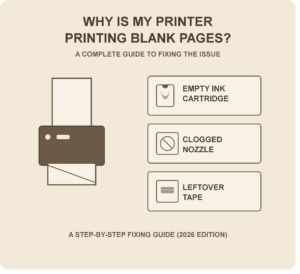
Table of Contents
1-The Key Difference: Blank vs Not Printing At All
2-Why This Happens
3-Inkjet vs Laser: The Cause Is Usually Different
4-How to Fix It
5-A Quick Way to Confirm the Cause
6-Preventing This From Happening
7-Common Mistakes People Make
8-Final Thoughts
9-Frequently Asked Questions
Overview
A printer that runs normally but outputs completely blank pages is a very specific problem, different from a printer that does not print at all. This usually means the ink or toner is the problem, not the connection. Printer takes the job paper moves fine, print head or drum moves but a clean empty sheet leaves. Printer can be more frustrating than an error because no message tells you what happened.
Using the built‑in nozzle cleaning cycle of assuming the cartridge must be replaced has saved me from buying cartridges many times. It is easy to think “I need a cartridge ” especially when the printer’s ink level indicator says all is fine but that indicator is one of the least reliable pieces of information the printer gives you.
The Key Difference: Blank vs Not Printing At All
Before troubleshooting it is worth being precise about which problem you have because the fixes are almost entirely different:
Not printing at all (error message, stuck in queue printer offline) is a connection, driver or spooler problem
Printing blank pages (job completes paper comes out nothing on it) is almost always an ink, toner or cartridge problem
If printer shows an error or the job never leaves the queue that is a separate issue outside the scope of this guide. This article is specifically for the case where printer thinks everything went fine. Because from printer’s perspective it did.
Why This Happens
Blank pages typically point to one of these causes:
• inkjet nozzles usually from ink drying out during periods of inactivity
• An empty or near‑empty cartridge that printer hasn’t accurately flagged
• Protective tape or a seal left on a new cartridge physically blocking the print head or toner from reaching the page
• A nearly depleted toner cartridge on laser printers, which can still show as “installed” and even print a faint outline before going fully blank
• A misaligned or improperly seated cartridge, which can prevent ink or toner from transferring when cartridge itself is full
• A drum unit issue on some laser printers separate from the toner cartridge itself which is easy to overlook since most people assume toner is the only moving part
Inkjet vs Laser: The Cause Is Usually Different
This is a distinction a lot of shorter guides skip but it matters for where you should actually look first.
Inkjet printers rely on nozzles that spray liquid ink and those nozzles dry out and clog if printer sits unused for a while. Even a week or two of inactivity can be enough especially in a dry or air‑conditioned room. This is why inkjet blank‑page issues are disproportionately common with printers that are used occasionally than daily.
Laser printers use toner powder and a heated drum than liquid ink so clogging isn’t the issue. Instead blank pages usually mean the toner cartridge is essentially empty despite what the display says or that the drum unit (a separate component from the toner cartridge on many models) has reached the end of its life and needs replacing on its own.
Knowing which type you have narrows the troubleshooting list by half before you even start.
How to Fix It
-Check for cartridge tape. New cartridges often have a strip of tape covering the print head or toner contact that must be removed before use. This alone accounts for a surprising number of “brand new cartridge, still blank” cases.
-Run the built‑in nozzle cleaning cycle. Most printer software includes a cleaning utility for clogged inkjet nozzles and it is worth running this before assuming the worst.
-Check ink or toner levels through the utility software, not the on‑printer display. Software‑reported levels are often more detailed and can reveal a specific color channel that is empty.
-Print a nozzle check pattern. This diagnostic test, available, in printer utilities shows exactly which colors or nozzles aren’t printing correctly rather than leaving you guessing.
-Take the cartridge out inspect that it sits flush and has clicked into place then reinsert it. A cartridge that is not fully seated may print a page even though it still contains ink.
-If a cleaning routine does not solve the problem replace the cartridge. After a cleaning cycles a page that remains blank typically indicates that the cartridge is truly empty and must be swapped.
-For laser printers examine the drum unit independently of the toner. When the toner has been replaced yet pages stay blank the drum a separate part may have reached the end of its useful life.
A Simple Test to Identify the Problem
When uncertain whether the problem lies with the cartridge, the nozzles or another component use this test: print a nozzle check pattern. If certain colors or lines are absent the nozzles are. A cleaning cycle should follow. If the pattern is completely empty with no lines the issue is more likely an empty cartridge, a seating problem or leftover tape. A clog usually still allows some ink to pass unevenly whereas an empty or blocked cartridge produces nothing.
How to Stop It from Reoccurring
Print a page every week or two even just a test page if the inkjet printer is used rarely. Frequent printing keeps ink moving through the nozzles. Is the best way to stop clogging.
Keep cartridges sealed, upright and out of direct heat. Ink can. Dry inside a cartridge that sits for a long time before being installed.
Do not wait for a ” ink” warning to replace a cartridge especially on printers that are used rarely. By the time the warning shows the cartridge may already be too empty to print
Remember that a laser printer’s drum has its lifespan, independent of the toner. Replacing the toner will not solve an issue caused by a worn drum.
Typical Errors People Commit
Assuming that a full ink level reading guarantees a cartridge. The displayed level and real print quality often differ, particularly when the cartridge is near its end.
Stopping after a cleaning cycle. Some stubborn clogs require two or three cycles, with a minutes between each to clear completely.
Replacing the part on a laser printer changing the toner when the real issue is the drum or changing the drum when the toner is fine without first checking the printer’s diagnostics.
Discarding a cartridge that needed reseating. A cartridge that is not fully clicked in can. Act like an empty cartridge.
Concluding Remarks
Checking for leftover tape may seem simple but it is a frequent cause especially with brand‑new cartridges. With cartridges try a cleaning cycle before replacing the cartridge; this often fixes the problem without extra cost. On a laser printer if replacing the toner alone does not help remember that the drum is an aging part.. If the printer is used rarely printing a brief job every few weeks can prevent this headache.
Frequently Asked Questions
Why does a printer display an ink level yet still print blank pages?
Does this issue occur more often with inkjet or laser printers?
How frequently should a cleaning cycle be run to prevent problems?
Is a blank pattern different from a partially printed one?
Can a drum unit really be a separate part, from the toner cartridge?
About This Guide
I discovered this problem on an inkjet printer that had been unused for a weeks, during a trip. I confirmed that the inkjet printer had nozzle clogging by running the built‑in check pattern before starting a cleaning cycle. On a laser printer a blank‑page issue turned out to be the drum unit instead of the toner, which took a bit of digging to figure out.
More Fixes:
https://appfixguide.net/printer-not-responding-step-by-step-fix/