Last updated: 26 September, 2026 | Read time: 8 minutes
Screen sharing failing in the middle of a presentation. A black screen for participants, a frozen frame or the “Share” button not responding at all. Is one of the most visible Teams problems because everyone in the meeting notices immediately. We tested the common failure patterns to find what actually causes each one.
Quick Answer
Screen sharing issues in Teams are usually caused by missing screen recording permissions at the operating system level ( on macOS) graphics driver conflicts or a specific display/GPU configuration issue with multiple monitors. Granting screen recording permission to Teams. Restarting the app resolves this for most users, particularly on Mac.
Why Screen Sharing Isn’t Working in Teams
1. Missing Screen Recording Permission (macOS)
macOS treats screen sharing as a system‑level privacy permission that’s separate from camera and microphone access. If Teams does not have Screen Recording” permission the Share button may look like it works but participants will see a black or frozen screen instead of your real content.
2. Graphics Driver Conflicts (Windows)
Teams’ screen‑sharing feature depends on your graphics driver to capture the display output. An outdated or buggy graphics driver on laptops that have both integrated and dedicated GPUs can cause the shared screen to freeze, flicker or fail to update in real time.
3. Multiple Monitor / Display Scaling Issues
Using display resolutions or scaling percentages on multiple monitors can confuse which screen Teams is capturing. This can cause a window or the wrong monitor to be shared.
4. Hardware Acceleration Conflicts
Teams uses hardware acceleration to keep video and screen sharing smooth. On graphics card and driver combinations this feature can cause rendering glitches or crashes only during screen sharing.
5. Corporate Policy Restrictions
Some organizations disable screen sharing for meeting types or external participants using Teams admin policies as a data‑loss‑prevention measure. If this is the cause local troubleshooting will not fix it. An IT admin must adjust the policy.
Step-by-Step Fix
Step 1: Grant Screen Recording Permission (macOS)
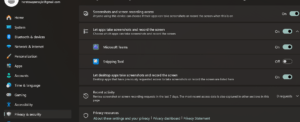
Open System Settings → Privacy & Security → Screen Recording. Check that the toggle next to Microsoft Teams is on. If you have just enabled it quit Teams completely. Then open it again because macOS requires a full restart for the permission to take effect.
Step 2: Update Your Graphics Driver (Windows)
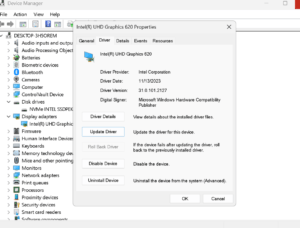
Right‑click the Start button. Open Device Manager. Expand “Display adapters,” right‑click your graphics card and select “Update driver.” Choose “Search for drivers” and install any update that appears.
Step 3: Disable Hardware Acceleration in Teams
Click your profile picture → Settings → General. Turn off “Disable GPU hardware acceleration” if it is already checked or try toggling it the way if issues continue. Test both states. Then restart Teams so the change takes effect.
Step 4: Try Sharing a Single Window of the Full Screen
If sharing the whole desktop causes problems try sharing only a specific application window. This helps you see whether the issue is with full‑screen capture or with screen sharing in general.
Step 5: Standardize Monitor Scaling
If you use monitors with different scaling percentages set them all to the same scaling value in your display settings and then test screen sharing again.
Step 6: Check With IT for Sharing Policy Restrictions
If screen sharing fails in meetings with external participants or specific meeting types ask your IT admin if a Teams sharing policy is intentionally restricting it.
Step 7: Update Teams to the Latest Version
Click your profile picture → Check for updates. Teams patch releases often fix screen‑sharing rendering bugs.
Frequently Asked Questions
Why do participants see a screen instead of my content?
On Mac this is always because screen recording permission is missing (Step 1). On Windows it usually points to a graphics driver or hardware acceleration conflict (Steps 2–3).
Does screen sharing work differently in the browser version of Teams?
Yes. The browser version relies on your browser’s screen‑capture permissions instead of the desktop app’s settings. Testing there helps you see if the problem is specific, to the desktop app.
Can I share an app window instead of my whole screen?
Yes Teams allows you to pick between sharing your desktop or a single application window when you press the “Share” button. Sharing one window helps keep other items hidden from participants.
About This Guide
After testing on both single‑monitor and multi‑monitor setups on Windows 11 and macOS
More Related Fix :
https://appfixguide.net/teams-status-stuck-on-away-fix/
https://appfixguide.net/microsoft-teams-camera-not-working-fix/
https://appfixguide.net/microsoft-teams-mic-not-working-fix/
https://appfixguide.net/microsoft-teams-keeps-signing-out-fix/
https://appfixguide.net/microsoft-teams-not-sending-notifications-fix/