Table of Contents
1-Before You Panic
2-Quick Checks in Order
3-Why This Happens
4-Where Your Passwords Actually Live
5-The Cause Most Guides Don’t Mention
6-Full Recovery Steps
7-Browser-Specific Notes
8-Building a Habit That Prevents This
9-Final Thoughts
Finding all of your browser’s saved passwords missing can be a harrowing experience, but fear not – in most cases, they’re not gone for good, just hidden away in a place not readily apparent. The most immediate concern is that they’ve been wiped from existence, stolen by some third party, or otherwise lost for good, and while those things can happen, it’s uncommon enough that it shouldn’t be your first course of action when dealing with an empty password list. They’re most likely either on another device or tucked away in another profile, just waiting to be found.
Quick Checks in Order
checking that I was signed into the same browser profile that I expected to find my passwords on, rather than some other profile I might have switched to accidentally, has solved the issue for me each time. Browsers can support multiple profiles at once for precisely this reason – so that users have an easy way to keep work and personal browsing separate, among other things, and it’s surprisingly easy to accidentally end up using a different one than the one you think you’re using.
After determining that you’re in the right profile, the next step is to check another device that you know is signed into your account, if you have one, as a way of determining whether or not your passwords are, in fact, still present anywhere on your account at all. If they are, great – now you know that the issue is specific to one device, rather than affecting everything that uses your account. If they’re not, …well, you’ll have plenty of time to deal with that later.
Why This Happens
1-This can happen for a number of different reasons, chief among them being
2-Signed into the wrong profile entirely,
3-A sync issue of some kind,
4-A bug in the browser itself or its interaction with your operating system,
5-Corruption of the local password database, or
6-Having a new profile created by accident instead of the old one being reloaded.
7-Where Your Passwords Actually Live
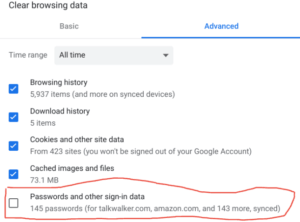
This is the crucial distinction that very few guides seem to make, and the reason why what follows constitutes an actual recovery method at all – your browser doesn’t actually store your passwords in one easily accessible place, but rather in two or more places at once, depending on which browser you’re using. On Windows, for example, your browser passwords are actually stored in your Windows Credential Manager, which holds a key that your browser needs in order to decrypt your saved passwords. Your browser in turn is responsible for storing said passwords in an encrypted local database. The same concept applies to Mac OS X, with your Mac’s Keychain fulfilling the role of the Credential Manager.
This means that if you’ve performed some kind of OS maintenance task recently that might have interfered with your local credential storage (such as a Windows account migration or password reset), it’s possible that your browser is seeing a valid, if indecipherable, set of passwords that it can’t actually use, which will show up as an empty list in your browser.
The Cause Most Guides Don’t Mention
One cause that does seem to be rather rare, but is also easily remedied, is a misbehaving extension or add-on. This is more or less the only reason that any individual guide would mention account syncing as something that could cause this problem, because there is no way for an extension to interfere with the ability of your account to sync, barring deliberate malicious action on the part of the extension itself. Extensions can, however, cause your list of saved passwords to stop displaying correctly, and some can even cause outright deletion of your saved passwords in rare edge cases. It’s not unheard of for third-party extensions to deliberately target browsers’ built-in password managers in an attempt to undermine their usefulness, and if you’ve installed an extension shortly before this issue cropped up, it may be a good idea to try disabling all extensions you’ve installed and see if the issue resolves itself.
Full Recovery Steps
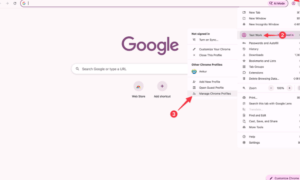
1-Check that you’re signed into the correct profile – passwords saved under one profile will not appear under another, even if you’re using the same computer.
2-Check your account syncing status and that it’s set to sync in general,
3-then Sign out of your account and back in again if needed,
4-then check another device you’re signed into if you have one, because if your passwords appear there, the issue is specific to one computer.
4-If that’s not the case, try restarting your browser entirely, making sure to close all windows and processes, not just the ones you can see, then see if that fixes the issue
If not, try disabling all extensions and restarting again
5-then check your system’s built-in credential storage, if applicable, to make sure it hasn’t stopped working
6-and finally, as a last resort, reinstalling your browser if all else fails.
Browser-Specific Notes
Chrome/Edge (Chromium-based)/Edge (non-Chromium): Chrome-based browsers behave much the same way in terms of password storage, and both natively support syncing through your Google or Microsoft account, respectively. Double-checking that you’re actually signed into the correct account is an important step in this case, as it’s easy to accidentally sign into your Google account on Firefox and expect to find your Chrome passwords there, for example.
Firefox: Firefox uses its own, separate syncing system rather than your OS account or Google account.
Safari: Safari uses iCloud Keychain to store your passwords, so any issues with iCloud syncing may show up here as well.
Building a Habit That Prevents This
The best way to avoid the panic of discovering one day that all of your browser’s saved passwords have vanished is to get into the habit of exporting them to an encrypted file somewhere safe every so often, just to have a backup of them in case something like this happens. For most browsers, this is a simple matter of finding the option to export your saved passwords in whatever security settings menu you can find and saving them to a file. It’s also a good idea to make sure that your browser is actually syncing your passwords somewhere secure on a regular basis, rather than assuming it is without checking now and then.
Final Thoughts
Profile mismatches seem to be the root cause of most issues like this, since it’s easy to mistake a guest profile for your actual profile or accidentally sign into the wrong account altogether when using multiple browsers that use the same syncing system. Checking another device is usually a good start if you’re trying to determine whether or not the issue is local to one device or not, and if it’s not, you may want to consider any extensions you’ve installed recently as a possible cause before doing anything more involved like checking your system’s credential storage if that applies to your browser.
Frequently Asked Questions.
1-Are my passwords actually deleted, or just not showing?
In the vast majority of cases, they aren’t deleted at all, they’re just hidden away somewhere that your browser isn’t currently seeing them from, which checking another device will usually confirm
2-Can a browser update cause this?
It can, but only in rare circumstances, and they’re usually easy enough to fix.
3-Should I use a different password manager instead?
Both types of password manager have their own benefits and drawbacks, but a stand-alone one tends to have far better options if something like this does happen, simply because it isn’t attached to one specific application that can have its syncing disabled. If this is a concern to you, it’s probably a good idea to look into one.
4-Could an extension really delete my saved passwords?
It’s rare, but entirely possible, and it’s much easier to rule them out as a cause before you do anything else, so if you’re using any extensions and suspect that they could be responsible for this, disabling them all is always an option.
5-What’s the difference between my browser losing sync and my operating system’s credential store failing?
There isn’t really a difference between your browser losing sync and your credential store failing in terms of what they look like, but they have different effects – one means your passwords are safe but your browser can’t see them, and the other means your browser thinks your passwords aren’t there at all when they actually are.
6-Is exporting my passwords to a file actually safe?
It can be, as long as you’re not keeping it as an unencrypted plaintext file on your desktop, which is obviously not secure. You should treat an exported passwords file the same way you would any sensitive document – keep it encrypted or, ideally, stored somewhere secure like a cloud drive with two-factor authentication enabled.
About This Guide
I ran into an issue similar to this after migrating my Windows account, which resulted in my browser passwords technically being present, but the key that allowed my browser to read them being wiped along with the account migration. Checking another device confirmed that the issue wasn’t that my passwords had vanished entirely, which is why I think it’s always a good idea to check that first.
More Related Fix:
https://appfixguide.net/browser-running-slow-or-freezing-how-to-fix-it/