Updated 27 September,2026 · 14 min read
1-Table of Contents
1-What’s Actually Going Wrong
2-The 2-Minute Fix That Works Most of the Time
3-Full Step-by-Step Fixes
4-When It Connects But Sound Doesn’t Play
5-The Multipoint Problem Nobody Explains Properly
6-2026-Specific Bluetooth Issues
7-Phone, Windows, and Mac: What’s Different
8-Interference: The Cause Most People Never Suspect
9-Firmware Updates and Why They Matter Here
10-Case and Battery-Related Connection Problems
11-Keeping It From Happening Again
12-About This Guide
13-Frequently Asked Questions
1-What’s Actually Going Wrong
Bluetooth pairing failures are nearly always a resolvable software or configuration issue, not a hardware defect, that manifest in a limited set of ways that can mostly be addressed in predictable ways, including but not limited to:
1-The headphones are actively paired to another device and not accepting a second connection.
2-There’s a corrupted pairing profile from an earlier, unsuccessful connection attempt.
3-The headphones aren’t in pairing mode.
4-The headphones are low on battery.
5-Interference from other 2.4GHz devices is interfering with the connection.
6-A driver or OS issue on the connecting device (not the headphones) is preventing a successful connection.
7-A personal observation: “forgetting” the device and re-pairing has fixed this for me more times than I can recall – it’s a nontrivial commitment, but takes less than a minute, and is worth attempting before anything else, because it really does work most of the time.
2-The 2-Minute Fix That Works Most of the Time
In order:
1-Turn Bluetooth off then back on.
2-This will reset the Bluetooth stack in your device, which can fix a wide variety of Bluetooth-related issues.
3-Put the headphones in pairing mode.
4-Using the method described by the manufacturer, usually a long press of the power button until an LED indicator begins flashing in a particular pattern.
5-Forget the device then re-pair.
6-On your phone or computer, go to the Bluetooth settings, forget the headphones, then re-pair them as if for the first time.
7-This sequence, on its own, will fix most connection issues.
3-Full Step-by-Step Fixes
1-Turn Bluetooth off and back on.
2-In your computer or phone settings, turn Bluetooth off then back on. This will flush the Bluetooth stack on your end, clearing minor glitches that a fresh connection attempt won’t address.
3-Put the headphones in pairing mode.
4-Refer to the manufacturer’s instructions, but it will generally involve holding the power button until an LED indicator begins flashing in a particular pattern.
5-Forget the device and re-pair.
6-On your computer or phone, go to the Bluetooth settings, forget the headphones, then pair them again as if for the first time.
7-Disconnect other devices.
8-Some headphones will only connect to a single device at a time (or two, using a feature called multipoint). Ensure they’re not paired to anything else, including devices you might not expect like a laptop on the other end of the room.
9-Charge the headphones.
10-Low battery can prevent pairing on some headphones, even if they power on and have an indicator light.
11-Restart both devices
Sometimes a simple restart of your phone or computer will fix a Bluetooth connection issue by refreshing the Bluetooth stack. On Windows computers especially, restarting the Bluetooth service can sometimes be necessary.
4-When It Connects But Sound Doesn’t Play
This section is separate from the others because this is a fundamentally different kind of issue, that many troubleshoot as if they were the same.Check your output device
The headphones may be “connecting” but Windows or another operating system may think that the default output device is still your computer’s built-in speakers.Check the output device on apps that support it
Some apps (mostly video calling apps) let you choose your output device independently, and may be set to something other than your headphones. Restart the audio service on Windows. The Windows Audio service can sometimes malfunction independently, preventing sound from playing out over Bluetooth even when a connection established.
5-The Multipoint Problem Nobody Explains Properly
Multipoint, the ability to connect two devices at once, has become commonplace in 2025-2026 headphones, but it introduces its own class of potential issues that don’t apply to older headphones:
Multipoint headphones may appear connected on one device, but are ignoring a new pairing request on the second because the first hasn’t reached an “idle” state yet
Switching sources may not work unless the headphones are instructed to do so, such as by pressing a physical button
Disabling multipoint entirely on the headphones may be necessary to establish a stable connection if it’s otherwise not working at all, as a troubleshooting step.
6-2026-Specific Bluetooth Issues
A few problems worth noting are specific to 2026 and later:
Bluetooth LE Audio and the new LC3 codec it uses have been implemented in many 2025 and 2026 headphones and phones, and a mismatch between an LE Audio-capable headphone and a non-LE Audio phone (or vice versa) can cause connection instability that appears to be a generic pairing issue.
Auracast broadcast features in newer headphones and public address systems can cause issues where a headphone will search for an Auracast transmitter instead of allowing a one-to-one pairing, especially in environments where they’re present.
WiFi 6E and especially WiFi 7 access points operate in a range that overlaps with Bluetooth frequencies, creating interference in some circumstances that wouldn’t have been a problem with older WiFi standards.
Android and iOS operating system updates have occasionally included changes to the Bluetooth stack that caused specific headphones to stop working until either a firmware update from the manufacturer or an OS update was received.
7-Phone, Windows, and Mac: What’s Different
iPhone / iOS
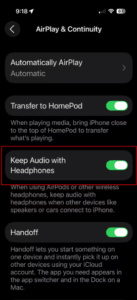
Settings → Bluetooth → [next to your headphones] i → Forget This Device. iPhones tend to remember Bluetooth devices for a long time, and just turning Bluetooth off and on again may not work. This process will clear the cached pairing information.
Android
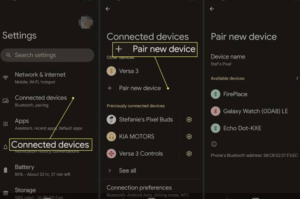
Settings → Bluetooth → [next to your headphones] Menu → Forget Device. Android devices tend to have similar Bluetooth behavior to iPhones, but the process for forgetting a device is slightly different. In some cases, Settings → Apps → Bluetooth → Storage → Clear Cache (not clear data) may be necessary if the headphones previously worked and then stopped pairing.
Windows
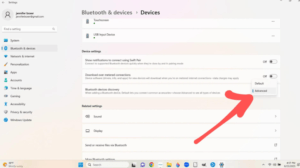
Right-click the Start Menu → Device Manager → Bluetooth → [your adapter] → Disable → Enable. Windows has some unique quirks with Bluetooth devices; this process will refresh the Bluetooth stack. Services → Bluetooth Support Service → Restart may also be necessary if the above fails, or a Bluetooth device simply stops working.
Mac
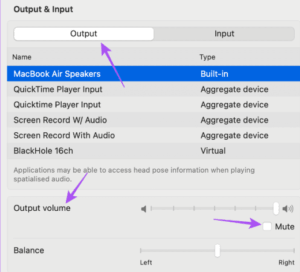
Option + Shift + click the Bluetooth icon in the menu bar → Debug → Reset the Bluetooth module. This is more extreme than it needs to be, but it does work. The regular Bluetooth preferences pane doesn’t have an option for this.
8-Interference: The Cause Most People Never Suspect
Bluetooth uses the same 2.4GHz frequency band as WiFi, so interference from WiFi networks is a known issue, but there are other devices that use the same frequency:
Running a microwave oven while trying to pair a phone can prevent the pairing process from succeeding
A crowded WiFi network can also cause pairing issues, especially in an apartment or office setting
USB 3.0 ports and USB 3.0 hubs are a known source of interference with Bluetooth signals, and one documented solution is to move a Bluetooth USB dongle to a USB 2.0 port or farther away from other USB 3.0 devices.
Obstructions such as clothing or a phone case can also interfere with the pairing process; try removing a case or ensuring the phone isn’t in a pocket.
9-Firmware Updates and Why They Matter Here
Firmware updates for headphones are much less common than phone or computer updates, but they’re often more important for Bluetooth connectivity:
They are usually distributed through a companion app, and can be easy to miss entirely. Firmware updates often include compatibility fixes for new phone models or operating system updates
A factory reset will not address a firmware update, but a firmware update can address a pairing issue a factory reset doesn’t fix.
10-Case and Battery-Related Connection Problems
This section applies mostly to earbuds rather than over-ear headphones:
A depleted battery in the case can prevent earbuds from powering on properly, resulting in pairing failures that look like Bluetooth issues
Dirty contacts on the case or buds can lead to uneven charging between the two buds that manifest as one bud not working
Opening and closing the case (or bud) for a few seconds and then removing it entirely can refresh the pairing state for some earbud models, addressing a “won’t connect” issue.
11-Keeping It From Happening Again
1-Keep headphone firmware updated through the manufacturer’s app, even if it’s easy to forget that it exists.
2-Clear out old, unused paired devices from the headphones’ memory periodically, especially on devices with a limited number of pairing slots.
3-Charge the case (not just the earbuds) if the case itself has a battery.
4-Disable multipoint entirely if the headphones are only ever used with a single device, to eliminate potential compatibility issues entirely.
5-Keep the headphones and connecting device within reasonable distance during the pairing process, even if distance isn’t an issue later.
12-About This Guide
I’ve paired and re-paired more Bluetooth headphones than I’d like to admit, across a variety of phone models, laptops, and conference room speakers, and I’ve found that while the “turn it off and on again” advice is more effective than it ought to be, it’s not always sufficient, especially with the advent of multipoint pairing and LE Audio. The interference section in particular is the result of personal frustration with a particular pair of earbuds that would not consistently pair with my desk, until I discovered the USB 3.0 hub on the other end of the desk was the problem. I update this guide periodically as the technology changes, as new technologies like LE Audio and Auracast are still emerging and don’t yet have established troubleshooting guides.
13-Frequently Asked Questions
1-Why do my headphones connect but play no sound?
This generally indicates the wrong audio output device was selected in your computer’s or phone’s settings.
2-Can having too many paired devices cause connection issues?
It can, on some headphones; clearing out old paired devices from the headphone’s memory can help.
3-Why do my headphones keep disconnecting right after pairing successfully?
It’s generally caused by interference from other devices using the same 2.4GHz band, or the headphones going out of range.
4-Is multipoint actually worth using if it keeps causing problems?
It’s a convenience feature, and like all convenience features it has downsides. If you switch between two devices often enough that it’s worth the risk, it’s probably worth keeping enabled. If not, disabling it will remove potential issues caused by it.
5-Does a USB 3.0 port really cause Bluetooth pairing failures?
It has been observed to do so in enough cases that it’s worth trying; moving a Bluetooth dongle to a USB 2.0 port or farther away from other USB 3.0 devices has been observed to help in some situations.
6-Should I update headphone firmware even if nothing seems wrong?
It can be worth doing, since firmware updates often include compatibility fixes for new phones or operating system versions, and those issues tend to appear after a phone update, rather than before.
Related Fix:
https://appfixguide.net/bluetooth-mouse-or-keyboard-input-lag-how-to-fix-it/