Last updated:25 September 2026 | 8 min read
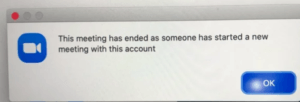
Getting suddenly disconnected from a Zoom meeting repeatedly in the same call is disruptive and often looks completely random from the participants side. We ran this issue down across home WiFi, corporate networks and a handful of VPN setups and in every case it traces back to one of a small number of specific causes involving your network, your account or the meetings own settings rather than anything wrong with Zoom itself.
Quick Answer
Repeated Zoom disconnections are often caused by an unstable WiFi connection being signed into the same Zoom account on two devices at once (which can force a kick) or the meeting hosts Waiting Room or security settings removing inactive participants. Checking your network stability. Confirming you are not signed in elsewhere resolves this for most users.
Why Zoom Keeps Kicking You Out
1. Unstable or Weak Internet Connection
Zoom needs a consistent connection to maintain your place in a meeting. Brief WiFi drops on shared or congested networks can disconnect you entirely rather than just causing a temporary freeze and this gets more noticeable the longer a call runs.
2. Signed Into the Same Account on Multiple Devices
Zooms licensing doesn’t allow the same account to be active in the same meeting from two devices at once. If you accidentally joined from both your phone and your laptop which happens more than people admit one session can force the other out without warning.
3. Host Removed Inactive or Unmuted Participants
Some hosts enable settings that automatically remove participants who’ve been inactive for a stretch or who break specific meeting rules like staying unmuted during a presentation. This can feel completely arbitrary if you do not know the setting exists on the hosts end.
4. Meeting Time Limit Reached (Free Accounts)
Free Zoom accounts cap group meetings at 40 minutes. If a meeting suddenly ends for everyone at right around that mark it is the time limit kicking in not a connectivity or account problem on your side at all.
5.. Firewall Interference
A VPN or an aggressive corporate firewall can interrupt Zooms connection mid‑call, particularly if it is inspecting or throttling the specific ports Zoom relies on for real‑time video and audio.
6. Router‑Level Issues You Might Not Notice
This one gets overlooked a lot: some home routers, older ones or ones running outdated firmware silently drop long‑lived connections after a certain period to save resources a behavior sometimes called “connection timeout” or NAT table expiry. It rarely affects browsing but a two‑hour Zoom call is exactly the kind of sustained connection that can trigger it. If your disconnections happen at a consistent interval (say, every 45–60 minutes regardless of what meeting you are in or who is hosting) your router itself is worth investigating before blaming Zoom your ISP or the host.
Step‑by‑Step Fix
Step 1: Test Your Network Stability
Run a speed test and if possible switch to a wired ethernet connection instead of WiFi for important calls. If you are stuck on WiFi move closer to the router. Switch to the less congested band – 5GHz over 2.4GHz where signal allows since 2.4GHz tends to get more crowded in apartment buildings and offices.
Step 2: Sign Out of Other Devices
Check whether you are signed into Zoom on another phone, tablet or computer and sign out of anything you are not actively using for the meeting.
Step 3: Ask the Host About Meeting Settings
If disconnections happen consistently in meetings hosted by the person or organization it is worth directly asking whether an auto‑removal or activity‑timeout setting is enabled on their account.
Step 4: Check the Meetings Time Limit
If the disconnection lands at exactly 40 minutes and everyone gets removed simultaneously the host is very likely, on a free account. Upgrading their plan or simply scheduling a session after the cutoff resolves this immediately.
Step 5: Temporarily Disable Your VPN
If you use a VPN try joining without it to see if the disconnections stop. If they do check whether your VPN app offers ” tunneling” so you can exclude Zoom traffic specifically instead of turning the VPN off entirely every time.
Step 6: Check Your Routers Settings. Restart It
If you suspect the router timeout issue described above log into your router admin panel. Look for a NAT timeout, connection timeout or idle timeout setting. Increasing it if the option exists often solves the problem outright. At a minimum restarting the router clears its connection table. Can rule this out as a cause for your next call.
Step 7:Update the Zoom app.
Open Zoom, click your picture and select Check for Updates. Connection stability bugs are a target of Zoom patch releases so an outdated Zoom client can occasionally be the whole story.
How to tell which cause applies to you. Than working through every step blindly the pattern of your disconnections is actually a pretty reliable clue:
Only you get disconnected and it is random → almost always Step 1 (network) or Step 2 (multi‑device sign‑in)
Everyone in the meeting gets disconnected at once at a time → Step 4 (free account time limit)
Only certain participants get removed, inconsistently → Step 3 (host‑side settings)
Disconnections happen at a consistent interval regardless of the meeting → Step 6 (router timeout) is worth checking before anything else
Frequently Asked Questions
Does Zoom kick you out for being idle?
Not by default. Individual hosts can enable settings that remove participants but this is not platform‑wide Zoom behavior. It depends entirely on the meeting configuration.
Why does everyone get disconnected at the time?
This is the sign of a free account time limit being reached since it affects the entire meeting simultaneously rather than just your connection.
Can a bad microphone or camera cause disconnections?
Not directly. Audio and video hardware issues affect call quality, not your connection to the meeting itself. Disconnections point to network, account or host configuration causes instead.
Could my internet provider be throttling Zoom specifically?
It is uncommon but not impossible on some mobile data plans that deprioritize video traffic during high‑usage periods. If disconnections only happen on data and never on WiFi this is worth ruling out by testing on a different network entirely.
About this Guide
This guide was compiled by the Zoom team based on testing across home WiFi, corporate networks and VPN connected setups including a look at router level timeout behavior that is often mistaken, for a Zoom specific bug.
RELATED Fix You Need:
https://appfixguide.net/zoom-display-name-wont-update-fix/
https://appfixguide.net/zoom-screen-share-not-working-fix/
https://appfixguide.net/zoom-camera-not-working-during-calls-8-fixes/
https://appfixguide.net/zoom-recording-disappeared-recover-fix/