Last updated:25 September 2026 | 9 min read
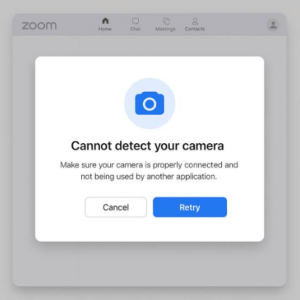
A camera right before a call can feel really stressful. Especially when you don’t have time to fix things before people start joining the meeting. The problem could be with the hardware, the operating system or Zoom itself. Figuring out which one is causing the issue saves you from clicking through settings and guessing. I tested every cause I could reproduce and put together a list of eight fixes. They are ordered from the checks to the more advanced ones so you can go through them fast instead of wasting time guessing.
The version:
Most Zoom camera problems happen because another app is already using the camera because the operating system has blocked Zoom’s camera permission or because Zoom has the wrong camera selected in its video settings. Closing apps that use the camera and checking the system-level permissions solves the issue for people in under two minutes.
Work Through These in Order
1. Close Other Apps Using the Camera
Most webcams can only be used by one app at a time. Close Microsoft Teams, Skype, FaceTime any browser tabs running video calls and any camera or streaming software running quietly in the background. Then open Zoom again. This is the common cause by far so its always worth checking first.
2. Check Camera Permissions on Windows
Go to Settings → Privacy & Security → Camera. Make sure “Camera access” is turned on. Then scroll down. Check that Zoom is listed under “Let apps access your camera.” If it’s not make sure it’s enabled.
3. Check Camera Permissions on macOS
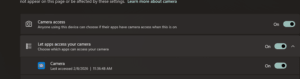
Open System Settings → Privacy & Security → Camera. Look for zoom.us in the list. Make sure the toggle is switched on. If Zoom isn’t listed all quit Zoom and open it again. MacOS usually adds Zoom to the list when the app itself asks for camera permission.
4. Select the Correct Camera in Zoom Settings
Open Zoom Settings → Video and check which camera is currently selected. If you have both a built-in laptop camera and an external webcam connected Zoom might be using the one without any warning. Pick the camera from the dropdown.
5. Update Your Camera Driver
Right-click the Start button and open Device Manager. Expand “Cameras” (or “Imaging devices” on some systems). Right-click your camera. Choose “Update driver.” Then select “Search for drivers.” Let Windows find and install the version.
6. Restart Your Device
A full restart clears out any background process that might still be holding the camera even after you’ve closed the app. This fixes stuck camera” issues that nothing else seems to fix.
7. Test the Camera Outside of Zoom
Open your operating system’s built-in camera app. Camera on Windows or Photo Booth on Mac. If the camera doesn’t work there either the problem is hardware or driver-related not specific to Zoom.
8. Reinstall the Zoom App
If nothing above has worked, uninstall Zoom completely. Then install it again from the official website. This clears out any configuration file that might be blocking camera access. Your account, meeting history and settings stay exactly the same. Reinstalling doesn’t erase any of that.
A Quick Way to Narrow It Down Faster
If you don’t have time before a call here’s a shortcut: test your camera in the OS camera app first (Step 7) before going through everything else. If it works there but not in Zoom you know the issue is with Zoom. Either permissions or the wrong camera selected. Then you can skip to Steps 2 to 4 of updating drivers or restarting your machine for nothing.
Frequently Asked Questions
My camera works in Teams but not Zoom. Why?
This always means it’s an app-specific permission issue. Each app asks for camera access separately. Just because Teams has permission doesn’t mean Zoom does. Recheck Step 2 or Step 3 specifically for Zoom.
Why is my Zoom camera showing a screen instead of an actual error?
A black screen with no error message usually means Zoom has permission. The video feed isn’t getting through. This often comes from a driver (Step 5) or another app quietly using the camera in the background (Step 1).
Does joining from a browser of the Zoom app fix camera issues?
Sometimes yes. The browser version of Zoom uses your browser’s camera permissions, not the desktop app’s. So if the browser version works the problem is isolated to the desktop app.
Can a webcam privacy cover or physical shutter cause this too?
Yes. It’s easy to miss. Some laptops and external webcams have a sliding privacy cover. If it’s closed Zoom will show a screen with no error. It looks like a permissions problem. So check it quickly before diving, into settings.
About This Article
After testing on Windows 11 and macOS using both built-in cameras and external USB webcams.
Related Fixes
https://appfixguide.net/zoom-screen-share-not-working-fix/
https://appfixguide.net/zoom-display-name-wont-update-fix/
https://appfixguide.net/zoom-keeps-kicking-you-out-of-meetings-fix/
https://appfixguide.net/zoom-recording-disappeared-recover-fix/