Last updated: 25 September, 2026 | 8 min read
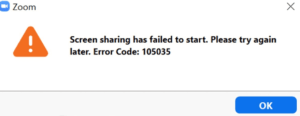
Screen sharing is one of the used features in Zoom. That also means it stands out when it stops working. A black screen, an image or the Share Screen button doing nothing. These are common problems that frustrate people in meetings. We tested screen sharing across Windows and Mac to find out exactly what causes each issue.
Quick Answer
Zoom screen share problems are usually due to missing Screen Recording permission at the operating system level. On macOS. Outdated graphics drivers or conflicts with hardware acceleration. Giving Zoom the permission and restarting the app fixes it for most users especially on Mac.
Why Screen Share Isn’t Working in Zoom
1. Missing Screen Recording Permission (macOS)
On macOS apps must be given permission to record your screen. Zoom needs this permission to work. If it doesn’t have it participants may see an frozen screen. You might not get any error message on your end so it can seem like the Share button is working fine.. Its not actually sending anything.
2. Graphics Drivers (Windows)
Zoom uses your graphics driver to capture and send your screen in real time. If the driver is out of date. On laptops that switch between graphics cards. You might see freezing, flickering or delays during screen sharing.
3. Hardware Acceleration Conflicts
Zoom uses hardware acceleration to make video and screen sharing smoother.. On some systems this feature can cause glitchy behavior. The problem usually shows up during screen sharing not during regular video calls.
4. Meeting Host Has Restricted Screen Sharing
If you’re not the host the host might have limited screen sharing to themselves only. This makes the Share Screen button greyed out or unresponsive for everyone. This can look like an issue but its a permission setting.
5. Outdated Zoom Client
Screen sharing has been a target for bug fixes in Zoom updates. If your Zoom client is old you’re more likely to run into a known bug that’s already been fixed in a version.
Step-by-Step Fix
Step 1: Grant Screen Recording Permission (macOS)
Go to System Settings → Privacy & Security → Screen Recording. Make sure the toggle next to zoom.us is turned on. Then quit Zoom completely. Reopen it. This permission only works after a restart. Just toggling it isn’t enough.
Step 2: Update Your Graphics Driver (Windows)
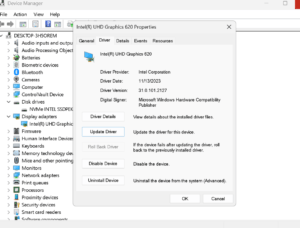
Right-click the Start button and open Device Manager. Expand “Display adapters.” Right-click your graphics card. Choose “Update driver.” Pick “Search for drivers.” Let Windows download and install any updates.
Step 3: Toggle Hardware Acceleration
Open Zoom Settings → Video (. Accessibility, depending on your version). Look for the hardware acceleration option. Try turning it off if it’s on or on if it’s off. Restart Zoom after changing this. The change won’t take effect until you restart.
Step 4: Confirm You Have Sharing Permission
If you’re not the host ask them to check the meeting security settings. They should go to Security → “Allow participants to Share Screen” and make sure it’s enabled.. They can adjust it directly from their sharing options menu.
Step 5: Try Sharing a Single Window
Instead of sharing your full desktop try sharing just one app window. This helps tell if the problem is with full-screen capture. Window sharing uses a method and might work even when full screen doesn’t.
Step 6: Update Zoom to the Latest Version
Open the Zoom desktop app. Click your profile picture. Choose “Check for Updates.” Install any updates. Restart the app after it’s done.
If the Problem Only Happens on One Display
If you use than one monitor test each display separately. Open Zoom’s Share Screen. Pick each monitor one at a time. Sometimes only a secondary monitor has the problem even if your main screen works fine. This often happens when displays have resolutions or refresh rates. Try making the resolution and scaling the same across all monitors. That solves it faster than updating drivers.
Frequently Asked Questions
Why do participants see a screen instead of my content?
On Mac this is always because Screen Recording permission is missing (Step 1). On Windows it usually points to a graphics driver or hardware acceleration issue (Steps 2 and 3).
Does this happen often with dual monitors?
Yes. When monitors have resolutions or scaling percentages Zoom might get confused about which screen to capture. Standardizing your display settings helps.
Can I share an app window of my whole screen?
Yes. In Zoom’s Share Screen menu you can choose your desktop, a specific application window or even a custom area.
Will reinstalling Zoom fix a screen share issue?
It might. If a previous update left behind a corrupted file.. Try the steps above first. Reinstalling takes longer. Isn’t always needed.
About This Guide
It’s based on hands-on testing across Windows 11 and macOS including setups, with one or multiple monitors.
Related fix:
https://appfixguide.net/zoom-display-name-wont-update-fix/
https://appfixguide.net/zoom-camera-not-working-during-calls-8-fixes/
https://appfixguide.net/zoom-keeps-kicking-you-out-of-meetings-fix/
https://appfixguide.net/zoom-recording-disappeared-recover-fix/