Last updated:22, September 2026 | Read time: 8 minutes
A Dropbox icon thats stuck on “syncing” for hours or files that never show up on a device is one of the more common problems people have with cloud storage. We tested this on Windows and Mac to find the main reasons that cause most of these issues.
Quick Answer
Dropbox sync issues are usually caused by the app being paused selective sync hiding folders, not enough space on the local computer or a damaged local sync database. Checking the sync status making sure selective sync is set up correctly and restarting the app usually fixes the problem in a minute
Why Dropbox is not syncing
1. Sync Is Paused
Dropbox can be paused on purpose through its menu. It also pauses automatically sometimes like when a laptop switches to battery mode or uses a metered connection. A paused icon looks similar to one that stuck.
2. Selective Sync Is Hiding Folders
Dropbox has a feature called Selective sync that lets you choose which folders to download to a device. If a folder was excluded before. Maybe to save space. The files in that folder would not show up on that device. This can look like a sync failure. Is actually an intentional setting.
3. Not Enough Space on the Local Computer
If you are syncing files directly to your computer of using Droboxes online only mode running out of free space can stop new downloads or uploads without any warning.
4. Dropbox Account Storage Limit Is
Free Dropbox accounts have a set amount of storage. Once that limit is reached new files can’t be uploaded. The files that are already synced work which can make the problem look like a bug instead of a storage limit.
5. Damaged Local Sync Database
Dropbox keeps a database to track what is synced and what is not. If this database is damaged, after a crash or sudden shutdown the app can look like its syncing forever without actually finishing.
6. File Names or Types That Dropbox Can not Handle
Some characters in file names, very long file paths or file types that Dropbox doesn’t support can cause certain files to fail quietly. The rest of the folder might still sync normally.
Step-by-Step Fix
Step 1: Check the Sync Status Icon
Click the Dropbox icon in the system tray (Windows) or menu bar (Mac). If it shows a pause symbol click it. Choose “Resume syncing.”
Step 2: Check Selective Sync Settings
Click the Dropbox icon, the gear or settings icon then Preferences. Go to the “Sync” tab. Click “Selective Sync.” Make sure the folder you expect to see is checked.
Step 3: Check Your Local Disk Space
Make sure you have free space for the files you are trying to sync. If space is low consider using “Smart Sync” for folders you don’t need on your computer offline.
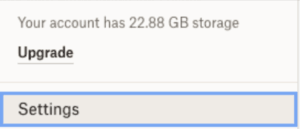
Step 4: Check Your Dropbox Storage Usage
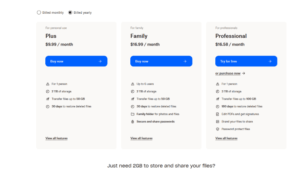
Go to dropbox.com and sign in. Look at your storage usage in the account settings. Delete files you don’t need or upgrade your plan if you’re at your limit.
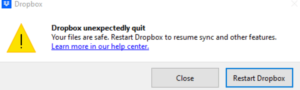
Step 5: Restart the Dropbox App
Close Dropbox from the system tray or menu bar then open it again. This helps fix sync issues by restarting the apps connection.
Step 6: Rebuild the Local Sync Database
Click the Dropbox icon, Preferences, then the account tab. Click “Unlink this Dropbox ” then sign back in. This creates a local sync database without deleting any files from your account.
Step 7: Check for Long File Paths or Strange Characters
If certain files keep failing to sync look at the file names for any characters. Also check that the folder path isn’t too long which can cause problems on Windows.
Step 8: Update Dropbox to the Latest Version
Click the Dropbox icon, Help then “Check for updates.” Install any updates. Sync problems are often fixed in versions of Dropbox or upgrade the plan for more features.
Frequently Asked Questions
Why can I see a file on the Dropbox website but not on my computer?
This is a sign that the file is being excluded by Selective Sync. The file is safe in your account. Its not set to download to this device.
Does unlinking my account delete my files?
No. Unlinking and linking your account again only resets the sync database, on your device. Your files stay safe in your Dropbox account online.
Why does Dropbox sync slowly with files?
Large files take time to upload or download depending on your internet speed. If the sync seems stuck instead of just slow check Steps 1 and 5 first.
How can I stop Dropbox from syncing?
While syncing is paused, you may still receive notification on change to your files. However, the changes would not be reflected in the Dropbox folder on your computer.
What should I do if the Dropbox desktop app indicates everything is up to date, but files are missing?
1-The files are still syncing: Large files can take extra time to sync to your device.
2-The app needs to restart: If an error has caused the app to stop syncing, closing the app and reopening it may resolve the issue.
About This Guide
It is based on tests done on Windows 11 and macOS using both sync and Smart Sync modes. This article is about latest problem and its update with the time. Thanks
https://appfixguide.net/google-drive-not-syncing-how-to-fix-it/