Last updated: 22September, 2026
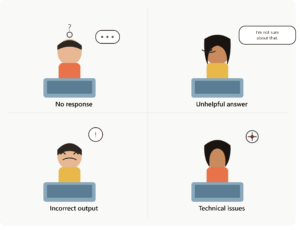
A AI assistant that stops in the middle of a reply spins on a loading icon forever. Simply does not respond is one of the most annoying modern tech problems. It is hard to tell if the problem is on your side in your browser or in the AI assistant itself. I tested this pattern with popular AI assistants to discover fixes that always work.
Quick Answer: Most occasions when an AI assistant does not reply or gets loading are due to a temporary server overload during busy times an old browser session or a conversation that has become too long for the AI assistant to handle smoothly. Refreshing the page starting a conversation and clearing the browser cache usually fix the problem for most people within a minute or two.
Why Your AI Assistant Isn’t Responding
1. Temporary Server-Side Overload
AI assistants rely on shared servers that can get very busy at peak times. When that happens requests may line up longer than normal or sometimes time out which looks to you as a reply that never comes or a loading spinner that never ends.
2. An Long Conversation Thread
Each AI assistant can only remember a certain amount of conversation before it slows down. If a thread gets long especially with big pasted documents, code blocks or many back-and-forth messages the AI assistant may take longer to reply or may fail to generate a reply for that message.
3. Stale Browser Session or Cache
Web-based AI assistants need your browser to keep a session with the server. If that session has been open for hours or if the browser cache still holds old files after a service update the AI assistant interface can look frozen even though a quick refresh would fix it right away.
4. Browser Extensions Interfering
Ad blockers, privacy extensions and script blockers can get in the way of the background connections that an AI assistant uses to send replies in time. This can make messages look stuck even if the AI assistant has already finished the request.
5. Network Connectivity Issues
AI assistant replies are often sent part by part over a connection. If the network drops for a moment the AI assistant may stop in the middle of a reply leaving the interface stuck on a loading screen of showing a clear error.
6. App-Specific Bugs After an Update
Like any software AI assistant apps sometimes release updates that contain bugs affecting features or platforms. If a stuck loading problem began after you noticed an app version it is a good first suspicion.
Step by Step Fix
Step 1: Refresh the Page or Restart the App
Refreshing the page or restarting the app usually solves stuck-loading problems by resetting the AI assistant session with the server. On apps close the app completely (do not just minimize it) before opening it again.
Step 2: Start a New Conversation

If the problem keeps happening in one conversation but not in fresh ones the length of that conversation is likely the reason. Beginning a chat and briefly mentioning any needed context usually brings back normal reply speed.
Step 3: Clear Your Browser Cache
Open the browser settings. Find the option to Clear browsing data or Clear cache. Choose images and files. Clear the data. Reload the AI assistant website.
Step 4: Try an Incognito/Private Window
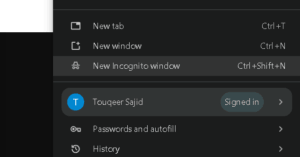
Open a browsing window and try the same request there. If it works the problem is probably a browser extension or a corrupted local session, not the AI assistant itself.
Step 5: Temporarily Disable Browser Extensions
Turn off ad blockers and privacy extensions one by one and reload the page to see if the AI assistant replies start coming through normally.
Step 6: Check Your Network Connection
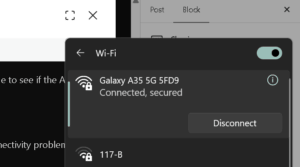
Run a speed test or switch from WiFi to mobile data to rule out a local connectivity problem especially if the AI assistant reply stops partway through.
Step 7: Check for an Outage
If none of the previous steps help and the problem occurs in every conversation, on every device look at the AI assistant provider’s official status page. Some providers keep a public status site that shows any service disruptions.
Step 8: Update the App
If you are using an desktop app instead of a browser look in your app store or use the app’s built‑in update checker to see if a pending update can already fix the issue you are experiencing.
Asked Questions
Why does my AI assistant freeze only on long responses?
Longer responses take more time to generate and to stream back to your device. Because of this they have chances to be interrupted by a short network hiccup or a session timeout than short replies do.
Does clearing my chat history fix loading issues?
It can help when the problem is caused by one long conversation because starting fresh reduces the amount of context that the AI assistant has to process. It will not help if the cause is an outage or a network issue.
Is it safe to keep retrying the message?
Yes but if a message keeps failing to generate after many attempts it is more efficient to rephrase it more concisely or to start a new conversation instead of repeating the identical request.
Should I use a different AI assistant if this keeps happening?
Yes you can use a different ai assistant that provide much better result than pervious one
About This Guide
This guide was compiled by the AI Tools team based on testing of popular browser‑based and app‑based AI assistants, on desktop and mobile.
https://appfixguide.net/ai-tool-not-remembering-conversation/